
Mobile VoIP lets you make and receive calls through an internet connection using an app on your smartphone. For a business, this means a team member can answer a company number on an iPhone or Android device while keeping the customer’s contact number separate from the device that answers.
For example, a sales colleague can answer the office line from a SIP app while working away from a desk. The public number stays the same. A Cloud PBX can connect the app to an extension and a wider team routing plan; forwarding to an ordinary mobile number is another way to deliver the call.
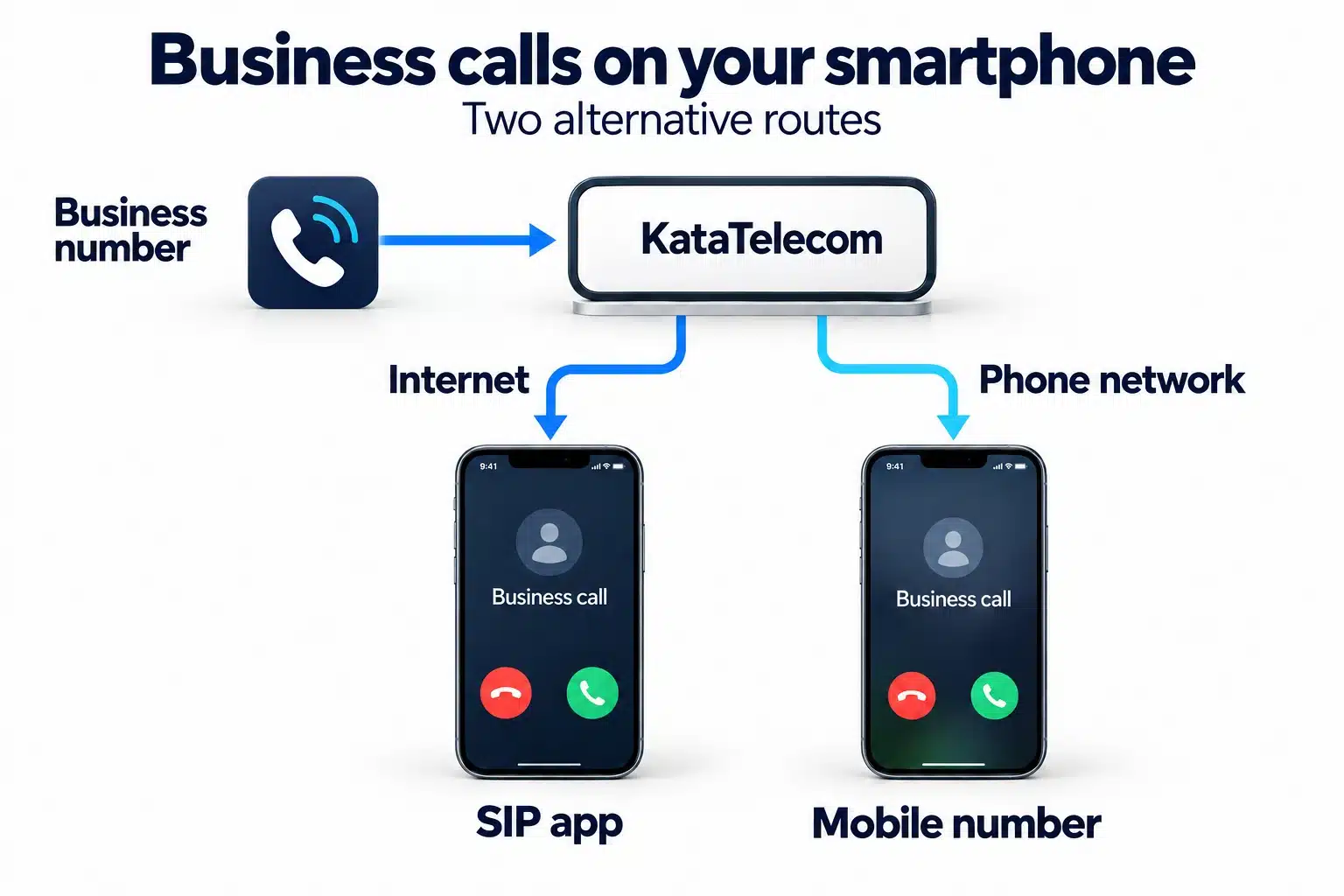
How mobile VoIP works
A SIP app, also called a softphone, uses Wi-Fi or mobile data to communicate with a phone service. A compatible app signs in with the SIP account settings supplied by that service. Installing an app alone does not create a business calling account or connect a public phone number.
- Outgoing call: your SIP app sends the call through the internet to KataTelecom, then the service routes it to the number you dialled.
- Incoming call: a customer calls your business number, KataTelecom follows its configured route, and your registered SIP app rings when it is the selected destination.
Calls between an app and a phone service use your internet connection. They are distinct from calls placed through the phone’s normal cellular dialler. Check both your internet or roaming allowance and the calling rate for the selected destination.
What you need before setting up a mobile SIP app
- An iPhone or Android device with a usable Wi-Fi or mobile data connection.
- A compatible SIP app that supports the account and features you need. Check its current iOS or Android requirements and any app charges.
- A KataTelecom SIP account and the server, login and password supplied in your personal account.
- The number or PBX route you want to use for incoming calls, plus the permissions and balance required for your selected calling service.
Use the settings supplied for your own account. A display name, SIP login and Caller ID can be different values. Ask the team to confirm any additional authentication, transport or network settings rather than copying another provider’s server address or port.
Set up and test VoIP on iPhone or Android
- Choose and install the app. Use the app publisher’s official download links or the official app store. Linphone and Zoiper publish instructions for adding provider SIP accounts; these are examples of SIP clients, not a guarantee that every feature works with every account.
- Add your provider account. Choose the app’s SIP or third-party account option and enter the server, login and password provided by KataTelecom. Follow any account-specific instructions for other fields. Keep the password private.
- Allow the functions you need. Enable microphone access for calls and review notification and background permissions for incoming calls. Use the app’s current instructions for your operating system.
- Check registration. Confirm that the app reports the account as registered or connected. If it does not, recheck the account details, internet connection and provider settings before testing calls.
- Test an outgoing call. Call a number you can answer, using the required number format. Check audio in both directions and the Caller ID actually presented.
- Test an incoming call. From a separate phone, call the public business number. Check that its route points to the intended SIP account or PBX extension.
- Repeat in everyday conditions. Test with the screen locked, after switching between Wi-Fi and mobile data, and when the first destination does not answer. Confirm the fallback route and the charges shown in your account.
App menus change between versions. For the client-side steps, use the Linphone third-party SIP account guide or Zoiper account configuration instructions, together with the settings supplied for your KataTelecom account.
SIP app or forwarding to a mobile number?
Answer through a SIP app
The call reaches an app through the internet. The smartphone needs a working data connection, and the app must be able to receive calls with the chosen account and background configuration. This suits a colleague who wants a business endpoint on the same device used for everyday work.
Forward to an ordinary mobile number
The service sends the call to the configured phone number, which rings through its normal telephone service. The receiving phone does not need a SIP app for that route, but it still needs to be reachable through its mobile service. Check the forwarded-call rate and supported destination.
You can plan these as different destinations in a business call flow. For example, a configured route may try a SIP endpoint first and then an ordinary mobile number if unanswered. See how call forwarding works for the conditions and tests to consider.
Will incoming calls work when the app is closed?
Do not judge this from one successful call while the app is open. Background calling depends on the client, its push or background features, operating-system permissions and the account configuration. Force-closing an app, changing networks or restricting background activity can change how incoming calls arrive.
Follow the client’s instructions for your iPhone or Android device and test with the screen locked. If you need a fallback, configure and test another supported destination. Zoiper’s incoming-call troubleshooting guide covers registration and network-related checks; use the settings supported by your provider.
Check these points if calls do not work
- The account does not register: recheck server, login and password, then confirm the account’s current status and required settings.
- Outgoing calls work but incoming calls do not: check the business number’s destination, the extension or SIP account selected, and the app’s incoming-call and notification settings.
- A call connects but audio works only one way: check microphone permission and test another suitable network. Share the test time and route with support so it can investigate the actual connection.
- Calls stop arriving after a network change or screen lock: check registration again and follow the app’s background or push instructions.
- The wrong number appears to the recipient: check the account’s Caller ID configuration and destination requirements.
Give support the app and operating-system versions, the time of the failed test and whether it was incoming or outgoing. Never publish your SIP password in a screenshot or troubleshooting message.
What does mobile VoIP cost?
Separate the costs of the app, the phone number, call usage and internet access. A free app download does not mean calls to ordinary telephone numbers are free. App features or subscriptions may also be charged separately by the app publisher.
Compare virtual number prices with the outgoing call rates for the destinations you need. Answering through a SIP endpoint and forwarding to an ordinary mobile number are different routes; check the selected offer in your personal account for exact pricing and conditions.
Quality communication at low prices provided by KataTelecom. Get it connected now at a discount!
Common questions about mobile VoIP
Can I use VoIP on both iPhone and Android?
Yes, with a compatible SIP app and provider account. Check the current app requirements for your device and confirm the account settings and features you need before choosing a client.
Do I need a new phone or a separate SIM?
A supported smartphone can run a SIP app using Wi-Fi or mobile data. A separate SIM is not inherently required for the app, although your internet access and any ordinary mobile forwarding destination have their own service requirements.
Do I need a virtual phone number?
A SIP account and a public phone number serve different purposes. To receive calls from ordinary phones, you need an incoming number routed to the app or extension. For outgoing calls, check your account’s calling permissions and Caller ID requirements. Explore virtual business numbers when choosing your public contact number.
Can I keep personal and business calls separate?
You can use a business SIP account in an app alongside your normal mobile service. Customers call the business number and the configured route delivers the call to the app. Your ordinary mobile number is not automatically ported or changed by installing a SIP client.
Can I receive calls without keeping the app on screen?
This depends on the client, its background or push support and your account and device settings. Test with the screen locked and after network changes. Configure another supported destination if your business needs a fallback.
Does a SIP account include every feature shown in an app?
No. A client’s video, chat or conferencing features may need the publisher’s own service or other supported server features. Confirm the functions required for your business with the app publisher and KataTelecom. For additional integrations, including Telegram, ask the team how the selected workflow connects to your calling setup.
Connect a business line to your smartphone
Start with your business SIP account, choose the answering destination and test a complete incoming and outgoing call. If several colleagues share the number, plan extensions and fallback destinations with Cloud PBX. Your customers can keep one contact number while your team answers from the devices it uses.